Backup, Flash and Restore Procedure
Overview
This guide covers the EFR32MG1B Zigbee radio chip firmware, not the main Linux system running on the RTL8196E SoC. The Lidl Silvercrest gateway contains two separate processors:
- RTL8196E (main SoC): Runs Linux 6.18 with the in-kernel
rtl8196e-uart-bridgedriver exposing the EFR32 UART on TCP:8888 - EFR32MG1B232F256GM48 (Zigbee radio): Runs the EmberZNet/EZSP firmware covered here
Before modifying the Zigbee radio firmware, it is strongly recommended to back up the original firmware. This ensures you can recover in case of a failed update or configuration error.
This guide describes two main methods:
| Method | Use Case | Hardware Required |
|---|---|---|
| Method 1: SWD | Full backup/restore, recovery from brick | J-Link debugger |
| Method 2: UART | Routine firmware updates | None (network only) |
Important: Backing up the original firmware requires a hardware debugger (Method 1). The software method (Method 2) can only flash new firmware, not read or backup existing firmware. If you want to preserve the original Lidl firmware before experimenting, you must use a J-Link or compatible SWD debugger.
Firmware File Types
| Format | Description | Use Case |
|---|---|---|
.bin |
Raw flash dump, byte-for-byte | Full backup/restore via SWD |
.s37 |
Motorola S-Record (ASCII) | Development, some bootloaders |
.gbl |
Gecko Bootloader Image (compressed) | UART updates via bootloader |
Important: For full backup or recovery, always use
.bin. The.gblformat only works when the Gecko Bootloader is intact and cannot restore the bootloader itself.
Method 1: Hardware Backup, Flash & Restore via SWD
Requirements
- Lidl Silvercrest gateway with accessible SWD pins
- A J-Link or compatible SWD debugger. I personally use a cheap (less than 5 USD incl shipping) OB-ARM Emulator Debugger Programmer:
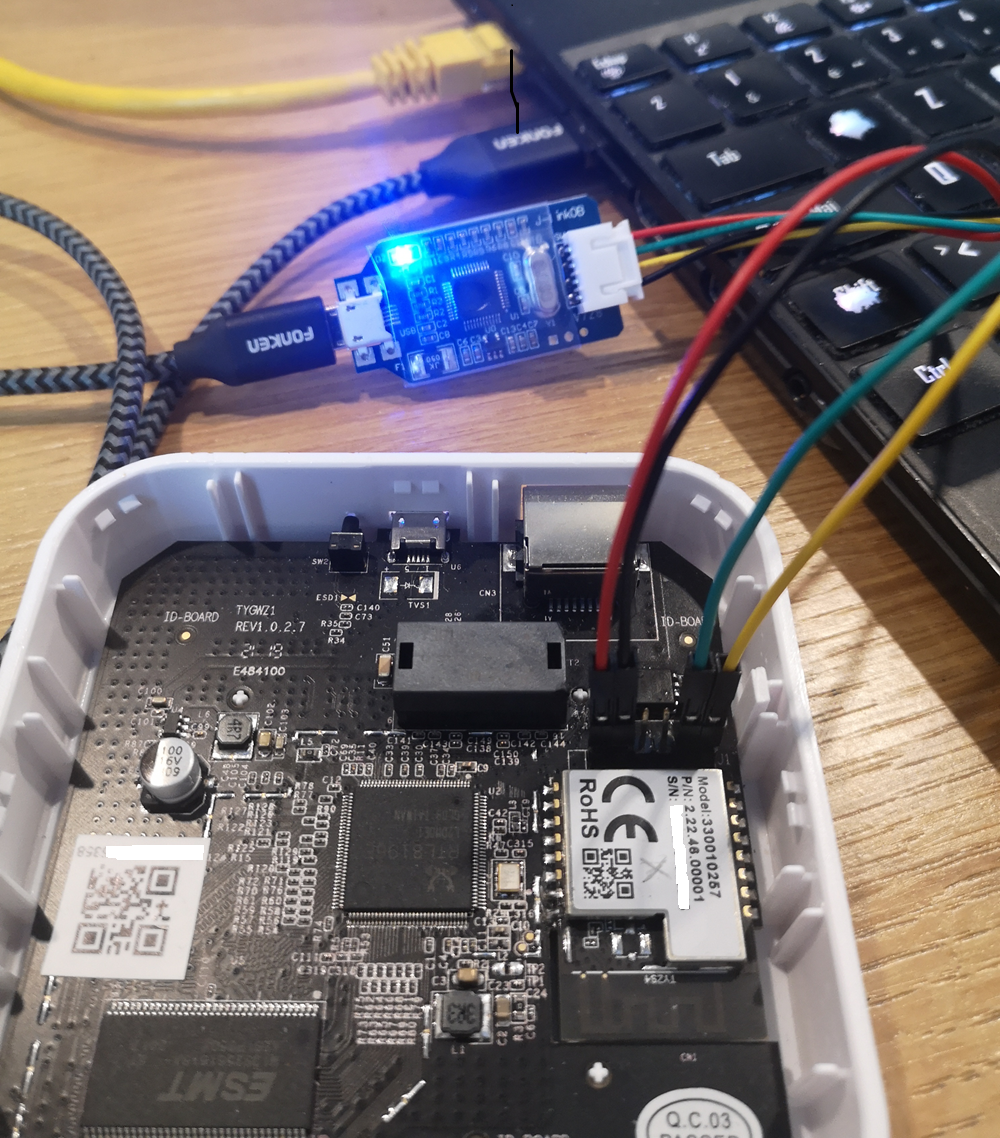
A useful investment! You can also build your own debugger with a Raspberry Pico and OpenOCD. Search the web!
- Simplicity Studio V5 with
commandertool - Dupont jumper wires (x4)
Pinout and Wiring
| Gateway Pin | Function | J-Link Pin |
|---|---|---|
| 1 | VREF (3.3V) | VTref |
| 2 | GND | GND |
| 5 | SWDIO | SWDIO |
| 6 | SWCLK | SWCLK |
Backup Procedure
-
Launch Commander (Windows default path):
-
Check Device Connection:
-
Read Full Flash (256KB):
-
(Optional) Verify Backup:
Restore Procedure
Flashing a .gbl File via SWD
If the Gecko Bootloader is functional:
Note: This only works if the bootloader is intact. For full recovery, use
.bin.
Method 2: Software-Based Flash via UART
This method uses the in-kernel rtl8196e-uart-bridge (6.18 kernel) on the Lidl gateway to expose the EFR32 serial port over TCP, allowing remote firmware updates via the Gecko Bootloader.
Limitation: This method only supports
.gblfiles. For full backup/restore, use Method 1 (SWD).
Use the flash_efr32.sh script at the repository root:
./flash_efr32.sh -y ncp                    # default IP 192.168.1.88
./flash_efr32.sh -y ncp 460800             # NCP at non-default baud
./flash_efr32.sh -y -g 10.0.0.5 otrcp      # custom gateway IP, OT-RCP
./flash_efr32.sh --help                    # full CLI reference
Firmware aliases: bootloader, ncp, rcp, otrcp, router (numeric
1-5 also accepted). Per-firmware supported bauds are listed in
2-Zigbee-Radio-Silabs-EFR32/README.md.
The script handles everything automatically since v3.1: pulses nRST
for a clean chip state, installs universal-silabs-flasher in a venv if
needed, switches the in-kernel UART bridge to flash mode
(flow_control=0) via SSH, flashes the selected firmware, writes the
matching chip identity (FIRMWARE, FIRMWARE_VERSION, FIRMWARE_BAUD)
and daemon-routing key (MODE) to /userdata/etc/radio.conf so init
scripts arm correctly on next boot AND a future reader can tell what's
on the chip without probing it, then reboots. See
3-Main-SoC-Realtek-RTL8196E/34-Userdata/README.md
for the full key reference.
Legacy env-var interface (deprecated, kept for v3.0.x compat):
FW_CHOICE=2 BAUD_CHOICE=460800 CONFIRM=y ./flash_efr32.shstill works with a deprecation warning.
See 35-Migration for the per-firmware filename pattern table.
Understanding universal-silabs-flasher
universal-silabs-flasher is a Python tool by NabuCasa that flashes Silicon Labs chips over UART without a J-Link debugger. It works by communicating with the Gecko Bootloader that is pre-installed on the EFR32.
For a deep dive into how USF works over TCP, why baud rate recovery is tricky, and how
flash_efr32.shhandles it, see MEMO-universal-silabs-flasher.md.
Architecture
┌──────────────────────────────────────────────────────────────────────────────┐
│                     universal-silabs-flasher Flow                            │
└──────────────────────────────────────────────────────────────────────────────┘

Your PC                          Gateway                         EFR32
───────                          ───────                         ─────
    │                                │                              │
    │  socket://192.168.1.88:8888     │                              │
    ├───────────────────────────────>│  rtl8196e-uart-bridge        │
    │                                │        (TCP↔UART, kernel)    │
    │                                │                              │
    │  1. Probe firmware type        │                              │
    │  ─────────────────────────────>│──────────────────────────────>
    │                                │                              │
    │                                │<─────── Response ────────────│
    │  <─ Detects firmware type      │                              │
    │                                │                              │
    │  2. Request bootloader mode    │                              │
    │  ─────────────────────────────>│──────────────────────────────>
    │                                │       (method depends on     │
    │                                │        firmware type)        │
    │                                │                              │
    │                                │<── EFR32 reboots into ───────│
    │                                │    Gecko Bootloader          │
    │                                │                              │
    │  3. Upload firmware (Xmodem)   │                              │
    │  ─────────────────────────────>│──────────────────────────────>
    │         .gbl file chunks       │                              │
    │                                │                              │
    │  4. Bootloader writes flash    │                              │
    │                                │<────── ACK/progress ─────────│
    │                                │                              │
    │  5. Bootloader reboots         │                              │
    │                                │<── New firmware running ─────│
    │                                │                              │
    └────────────────────────────────┴──────────────────────────────┘
Firmware Type Detection
The flasher automatically detects what's currently running on the EFR32 and uses the appropriate method to enter the bootloader:
| Firmware Type | How Detected | Bootloader Entry Method |
|---|---|---|
| Gecko Bootloader | Responds to menu commands (1, 2, 3) |
Already in bootloader, proceed to Xmodem |
| NCP (EZSP) | Responds to EZSP protocol frames | EZSP launchStandaloneBootloader command |
| RCP (CPC) | Responds to CPC protocol frames | CPC bootloader reset command |
| Router | Responds stack ver. [x.x.x] to version |
CLI command bootloader reboot |
This means you can flash any firmware type without knowing what's currently running. The flasher will figure it out.
Probe Output Examples
NCP firmware (EZSP):
Probing ApplicationType.GECKO_BOOTLOADER at 115200 baud
Probing ApplicationType.EZSP at 115200 baud
Detected ApplicationType.EZSP, version '7.5.1.0 build 188'
RCP firmware (CPC):
Probing ApplicationType.GECKO_BOOTLOADER at 115200 baud
Probing ApplicationType.CPC at 115200 baud
Detected ApplicationType.CPC, version 'RCP v5.0.0'
Router firmware:
Probing ApplicationType.GECKO_BOOTLOADER at 115200 baud
Probing ApplicationType.ROUTER at 115200 baud
Detected ApplicationType.ROUTER, version 'stack ver. [7.5.1.0]'
Already in bootloader:
Probing ApplicationType.GECKO_BOOTLOADER at 115200 baud
Detected ApplicationType.GECKO_BOOTLOADER at 115200 baud
The flow_control sysfs param Explained
The Gecko Bootloader runs its Xmodem path with no flow control, while normal firmware operation on the Lidl gateway (NCP, RCP) requires hardware flow control (RTS/CTS).
| Bridge state | flow_control |
Flow Control | When to Use |
|---|---|---|---|
| normal | 1 / hw (default) |
Hardware (RTS/CTS) | Normal operation (Z2M, ZHA) on the Lidl board |
| normal (sw) | 2 / sw |
Software (XON/XOFF, handled by the bridge) | Boards without RTS/CTS wiring + NCP-UART-SW firmware (bridge v1.2, kernel 6.18) |
| flash | 0 / none |
None | Flashing via bootloader (always 0 — Xmodem payloads contain raw XON/XOFF bytes) |
Readback of the knob is always numeric (0/1/2). Write the value to
the sysfs knob — the bridge stays armed, TCP:8888 never drops:
echo 0 > /sys/module/rtl8196e_uart_bridge/parameters/flow_control   # flash mode
echo 1 > /sys/module/rtl8196e_uart_bridge/parameters/flow_control   # normal
flash_efr32.sh does this automatically and restores flow_control=1 on exit.
Why flashing fails with flow_control=1:
Normal mode (hardware flow control):
┌─────────────┐     RTS/CTS     ┌─────────────┐
│ kernel      │<───────────────>│   EFR32     │
│ UART bridge │                 │ (bootloader)│
└─────────────┘                 └─────────────┘
                                      │
                  Bootloader ignores RTS/CTS
                  → Xmodem responses blocked!
                  → Timeout → FailedToEnterBootloaderError

With flow_control=0 (no flow control):
┌─────────────┐      TX/RX      ┌─────────────┐
│ kernel      │<───────────────>│   EFR32     │
│ UART bridge │   (no RTS/CTS)  │ (bootloader)│
└─────────────┘                 └─────────────┘
                                      │
                  Xmodem works correctly
                  → Flash succeeds!
Flash Process Step-by-Step
- Probe: Flasher sends protocol-specific commands to identify firmware
- Bootloader entry: Sends appropriate command based on detected type
- Wait for bootloader: EFR32 reboots, bootloader sends menu
- Xmodem upload: Firmware is sent in 128-byte blocks with checksums
- Verification: Bootloader validates the
.gblsignature - Reboot: Bootloader launches the new firmware
Common Errors
| Error | Cause | Solution |
|---|---|---|
FailedToEnterBootloaderError |
HW flow control blocking bootloader | Write 0 to flow_control sysfs param |
Failed to probe running application |
Device not responding | Power cycle gateway, check IP |
Xmodem timeout |
Network latency or other process using port | Use wired Ethernet, close SSH sessions |
GBL signature verification failed |
Corrupt or incompatible firmware | Re-download firmware, check SDK version |
Session Conflicts
Important: Close all SSH sessions before flashing.
If you have an SSH session with an active nc or previous flasher run connected to port 8888, the new flasher instance will conflict:
# Bad: existing connection blocks new flasher
Terminal 1: ssh gateway → nc localhost 8888  (still open!)
Terminal 2: universal-silabs-flasher ...     (fails!)

# Good: close the nc session and put the bridge in flash mode
Terminal 1: ssh gateway → killall nc
           → echo 0 > /sys/module/rtl8196e_uart_bridge/parameters/flow_control
Terminal 2: universal-silabs-flasher ...     (works!)
Quick Reference
Flash via UART (most common)
./flash_efr32.sh -y ncp                    # NCP @ default baud, default IP
./flash_efr32.sh -y ncp 460800             # NCP @ 460800
./flash_efr32.sh -y -g 10.0.0.5 otrcp      # OT-RCP, custom IP
./flash_efr32.sh --help                    # full CLI reference