Zigbee 3.0 Router Firmware for Lidl Silvercrest Gateway
Minimal Zigbee 3.0 Router (SoC) firmware for the EFR32MG1B232F256GM48 chip found in the Lidl Silvercrest Smart Home Gateway.
This firmware transforms the gateway into an autonomous Zigbee router that extends your mesh network coverage.
Features
- Zigbee 3.0 Router - Full mesh routing capabilities
- Auto-join - Automatically joins open Zigbee networks via network steering
- Child support - Up to 16 sleepy end-devices as children
- Source routing - 50-entry route table for large networks
- Minimal footprint - ~186KB flash (34KB margin on 256KB chip)
- NVM3 storage - 36KB for network credentials and tokens
- Mini-CLI - Bootloader access and network management via serial commands
Hardware
| Component | Specification |
|---|---|
| Zigbee SoC | EFR32MG1B232F256GM48 |
| Flash | 256KB |
| RAM | 32KB |
| Radio | 2.4GHz IEEE 802.15.4 |
| UART | PA0 (TX), PA1 (RX), PA4 (RTS), PA5 (CTS) @ 115200 baud |
Option 1: Flash Pre-built Firmware (Recommended)
Pre-built firmware is available in the firmware/ directory. From the
repository root:
./flash_efr32.sh -y router                   # default baud 115200, default IP 192.168.1.88
./flash_efr32.sh -y -g 10.0.0.5 router       # custom gateway IP
./flash_efr32.sh --help                      # full CLI reference
The script handles everything: pulse nRST for a clean chip state, send
the router's bootloader reboot CLI command (the router firmware doesn't
speak EZSP/CPC/Spinel — entry to the bootloader goes via its mini-CLI),
upload the new firmware, then write FIRMWARE_BAUD=115200 to
/userdata/etc/radio.conf so the bridge auto-arms at the router CLI baud
on next boot — meaning you can reach the mini-CLI
via nc 192.168.1.88 8888 immediately after reboot.
The router firmware runs autonomously — no host application needed.
Router supports 115200 only (the mini-CLI is text-based, no benefit from higher baud).
Legacy env-var interface (deprecated):
FW_CHOICE=5 CONFIRM=y ./flash_efr32.shstill works with a deprecation warning. Prefer the flag form above.
Gateway state after flash
flash_efr32.sh writes to /userdata/etc/radio.conf:
FIRMWARE=router        # what's in the EFR32 application slot
FIRMWARE_VERSION=7.5.1 # EmberZNet version embedded in the GBL
FIRMWARE_BAUD=115200   # chip-side UART baud — S50uart_bridge reads this and
                       # arms TCP:8888 at 115200 (no MODE= line; otbr-agent off)
FIRMWARE_BAUD is the single source of truth (chip-side baud =
host-side baud, since both ends of the UART link must agree); the
FIRMWARE* companion keys are informational. See
3-Main-SoC-Realtek-RTL8196E/34-Userdata/README.md
for the full key reference.
The bridge is armed at 115200 (the router's mini-CLI baud) so you can
reach the mini-CLI
via nc <gateway-ip> 8888 — useful for network status,
network steer, and bootloader reboot commands.
Option 2: Build from Source
For users who want to customize network parameters, modify the code, or use a different EmberZNet version.
Prerequisites
Install Silicon Labs tools (see 1-Build-Environment/12-silabs-toolchain/):
This installs:
- slc-cli - Silicon Labs Configurator
- arm-none-eabi-gcc - ARM GCC toolchain
- commander - Simplicity Commander
- Gecko SDK with EmberZNet
Build
cd 2-Zigbee-Radio-Silabs-EFR32/27-Router
./build_router.sh                # default baud 115200
./build_router.sh --help         # show options (router CLI is text-only,
                                 # higher baud gives no real benefit)
Output
flash_efr32.sh resolves the right file via a glob.
Other formats (.s37, .hex, .bin) are generated in build/ but not saved.
Customization
UART baud rate: Default is 115200. With the in-kernel UART bridge on kernel 6.18, rates up to 892857 are supported. See 25-RCP-UART-HW for details.
Edit patches/z3-router.slcp to modify network parameters:
configuration:
- {name: EMBER_MAX_END_DEVICE_CHILDREN, value: '16'}  # Max child devices
- {name: EMBER_SOURCE_ROUTE_TABLE_SIZE, value: '50'}  # Route table entries
- {name: EMBER_PACKET_BUFFER_COUNT, value: '64'}      # Packet buffers
Clean
Flash
Via network (same as Option 1):
Via J-Link/SWD (if you have physical access to the SWD pads):
Usage
Joining a Network
How it works
The join process requires coordination between the coordinator (Z2M) and the router:
- Coordinator must have permit join enabled - it broadcasts beacons to announce it accepts new devices
- Router performs network steering - it scans all channels looking for beacons
- If the router finds a beacon during its scan → join succeeds
- If no beacon is found → error 0x70 (EMBER_NO_BEACONS) and automatic retry
Automatic retry behavior
The router automatically attempts to join: - At boot: Network steering starts 3 seconds after power-on - On failure: Retries every 10 seconds automatically - Continuous: Keeps retrying until it successfully joins a network
Steps to join
- Enable permit join on your Zigbee coordinator:
- Zigbee2MQTT: Settings → "Permit join" (or via web UI)
-
Home Assistant ZHA: "Add device"
-
Power on the gateway with the router firmware (or reset it)
-
Wait for the router to appear (usually 10-30 seconds)
Since the router retries every 10 seconds, you just need to ensure permit join stays enabled long enough (at least 15-20 seconds) for the next retry cycle.
What the router does
- Scans all Zigbee channels (11-26)
- Finds networks with permit join enabled
- Joins using the default install code
- Starts routing mesh traffic
Verification
After flashing and powering on, you should see the router join in Zigbee2MQTT logs:
info  Zigbee: allowing new devices to join.
info  Device '0x847127fffe422cfe' joined
info  Starting interview of '0x847127fffe422cfe'
info  Successfully interviewed '0x847127fffe422cfe', device has successfully been paired
warning  Device '0x847127fffe422cfe' with Zigbee model 'LidlRouter' and manufacturer name
         'Silvercrest' is NOT supported, please follow https://www.zigbee2mqtt.io/...
The device will appear in Z2M with these properties:
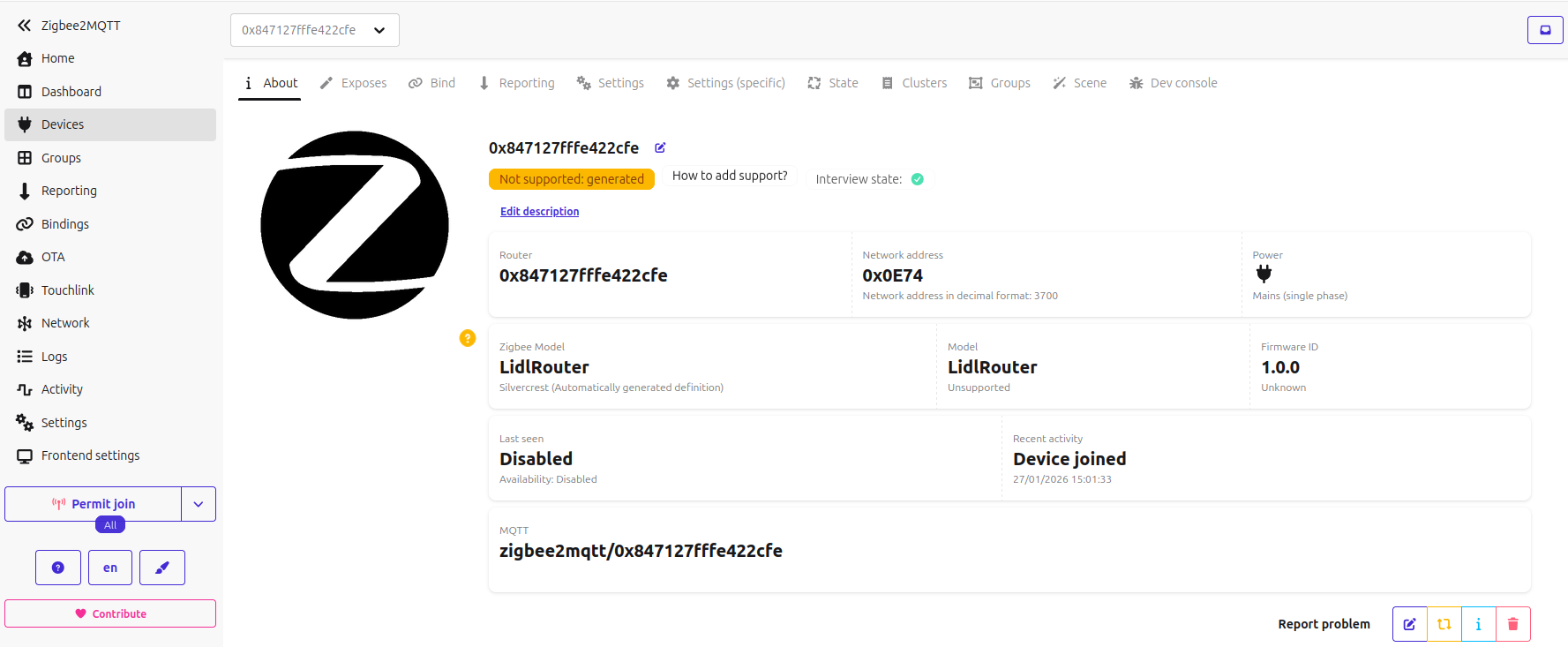
| Property | Value | Source |
|---|---|---|
| Device type | Router | Zigbee device type |
| Zigbee Model | LidlRouter + Silvercrest | ZCL Basic Cluster attributes (modelID + manufacturerName) |
| Model | LidlRouter (Unsupported) | Z2M device database (no definition for this device) |
| Firmware ID | 1.0.0 | ZCL Basic Cluster attribute (swBuildId) |
| Power | Mains (single phase) | ZCL Basic Cluster attribute (powerSource) |
Zigbee Model vs Model: The "Zigbee Model" field shows raw values read from the device during interview (modelID and manufacturerName from ZCL Basic Cluster). The "Model" field shows the friendly name from Z2M's device definition database. For supported devices (e.g., Ikea bulbs), these differ. For unsupported devices like this router, Z2M copies the Zigbee Model and shows "Unsupported".
About the "Not Supported" Warning
The "Not supported" warning in Zigbee2MQTT is expected and normal for this device.
This happens because: 1. The router firmware only implements the Basic cluster (mandatory minimum) 2. Z2M has no device definition file for "LidlRouter" 3. A pure router has no controllable features to expose
This does NOT affect functionality. The router still: - Routes mesh traffic between devices - Extends network coverage - Supports end-device children - Appears in the network map
The warning simply means Z2M cannot expose any controllable features (switches, sensors, etc.) because a pure router has none to expose. You can safely ignore this warning.
Verify Routing
Check routing is working: - Other devices should show routes through this router - Network map shows the router with connections to neighbors
Technical Details
Mini-CLI for Bootloader and Network Management
The firmware includes a lightweight CLI (~3KB) that allows reflashing without J-Link and managing the Zigbee network.
Commands
| Command | Response | Description |
|---|---|---|
version |
stack ver. [7.5.1.0] |
Show stack version |
bootloader reboot |
Rebooting... |
Enter Gecko bootloader |
info |
Zigbee Router - EmberZNet 7.5.1 |
Show firmware info |
network status |
Network: JOINED (channel 15, PAN 0x1234) |
Show network status |
network leave |
Leaving network... |
Leave current network |
network steer |
Starting network steering... |
Join an open network |
help |
Command list | Show available commands |
Architecture
┌─────────────────┐     UART      ┌─────────────────┐
│   RTL8196E      │───────────────│   EFR32MG1B     │
│   (Host CPU)    │  TX/RX: PA0/PA1   (Zigbee SoC)  │
│                 │  RTS/CTS: PA4/PA5               │
│  kernel UART    │  115200 baud  │  Router FW      │
│  bridge :8888   │  Flow control │  + mini-CLI     │
└─────────────────┘               └─────────────────┘
Direct usage from remote host (via netcat) — Recommended
This is the preferred method because it provides local echo of typed commands.
# Ensure the gateway runs kernel 6.18 with rtl8196e-uart-bridge armed
# (automatic via S50uart_bridge at boot)

# From your PC:
jnilo@jnilo-Key-R:~$ nc 192.168.1.126 8888
help    # no prompt on connect, just type "help"
Commands:
  version           - Show stack version
  bootloader reboot - Enter bootloader
  info              - Show device info
  network status    - Show network status
  network leave     - Leave current network
  network steer     - Join an open network
  help              - Show this help
> info
Zigbee Router - EmberZNet 7.5.1
> network status
Network: JOINED (channel 11, PAN 0x1A62)
> version
stack ver. [7.5.1.0]
> ^C
jnilo@jnilo-Key-R:~$
Direct usage from the gateway (via SSH)
~ # echo 0 > /sys/module/rtl8196e_uart_bridge/parameters/enable   # release /dev/ttyS1
~ # microcom -s 115200 /dev/ttyS1
Commands:
  version           - Show stack version
  bootloader reboot - Enter bootloader
  info              - Show device info
  network status    - Show network status
  network leave     - Leave current network
  network steer     - Join an open network
  help              - Show this help
> Zigbee Router - EmberZNet 7.5.1
> Network: JOINED (channel 11, PAN 0x1A62)
> stack ver. [7.5.1.0]
>
# To exit microcom: Ctrl+X
Note: When using microcom on the gateway, there is no local echo of typed characters (commands help, info, network status, version were typed above). Commands still work - just type and press Enter.
Reflashing over the network
The router can be reflashed without physical access using flash_efr32.sh from the repository root. The flasher automatically detects the Router firmware and uses the bootloader reboot CLI command to enter bootloader mode (unlike NCP firmware which uses EZSP commands for bootloader entry).
ZCL Configuration
| Endpoint | Profile | Clusters |
|---|---|---|
| 1 | Home Automation (0x0104) | Basic (server) |
Basic Cluster Attributes: - ZCL Version: 0x08 - Manufacturer Name: Silvercrest - Model Identifier: LidlRouter - Power Source: 0x01 (Mains) - SW Build ID: 1.0.0 - Cluster Revision: 3
Network Parameters
| Parameter | Value |
|---|---|
| Device Type | Router |
| Security | Zigbee 3.0 |
| Max Children | 16 |
| Packet Buffers | 64 |
| Neighbor Table | 16 |
| Source Route Table | 50 |
| Binding Table | 10 |
| Key Table | 4 |
Memory Layout
Flash (256KB):
├── Application     ~186KB
├── NVM3 Storage     36KB
└── Free            ~34KB

RAM (32KB):
├── Stack + Heap    ~16KB
└── Application     ~16KB
Removed Features (Flash Savings)
The following components were excluded to minimize flash usage:
| Component | Savings | Reason |
|---|---|---|
| Full CLI | ~28KB | Replaced by mini-CLI (~2KB) |
| Debug Print | ~10KB | No debug output |
| Green Power | ~50KB | Not used |
| Zigbee Light Link | ~40KB | Not a lighting device |
| Identify Cluster | ~4KB | No LED for feedback |
| Find-and-Bind | ~8KB | Router doesn't initiate bindings |
Impact of Removed Features
- No Identify: The "Identify" button in Z2M/ZHA won't trigger any visual feedback (the gateway has no accessible LED anyway)
- No Find-and-Bind: Cannot do direct device-to-device binding (not needed for a pure router)
- Mini-CLI only: The full CLI framework (~28KB) is replaced by a lightweight mini-CLI (~3KB) with essential commands for bootloader access and network management
All core routing functionality is preserved.
Files
27-Router/
├── build_router.sh                    # Build script
├── README.md                          # This file
├── firmware/                          # Output directory
├── images/
│   └── z2m-router-joined.png          # Z2M screenshot
└── patches/
    ├── z3-router.slcp                 # Project configuration
    ├── main.c                         # Entry point + RTL8196E delay
    ├── app.c                          # Application callbacks
    ├── zap-config.h                   # ZCL endpoint configuration
    ├── zap-*.h                        # ZCL type definitions
    ├── sl_iostream_usart_vcom_config.h  # UART pin mapping
    └── sl_rail_util_pti_config.h      # PTI disabled
Boot Sequence
Power On
    │
    ▼
1-second delay (RTL8196E boot sync)
    │
    ▼
Silicon Labs system init
    │
    ▼
Zigbee stack init
    │
    ▼
emberAfMainInitCallback()
    │
    ├──────────────────────────────────┐
    ▼                                  │
Wait 3 seconds                         │
    │                                  │
    ▼                                  │
networkSteeringEventHandler()          │
    │                                  │
    ▼                                  │
Already on network? ──Yes──► Done      │
    │                                  │
    No                                 │
    │                                  │
    ▼                                  │
Start network steering                 │
    │                                  │
    ▼                                  │
Scan all channels (11-26)              │
    │                                  │
    ▼                                  │
Found beacon? ──No──► Wait 10 sec ─────┘
    │                        (retry loop)
    Yes
    │
    ▼
Join network
    │
    ▼
Stack status: NETWORK_UP
    │
    ▼
[Router active - routing mesh traffic]
Troubleshooting
Router doesn't join
Quick checklist
- Check permit join is enabled on coordinator and stays enabled for at least 20 seconds
- Verify Z2M is running - The coordinator must be active to respond to beacons
- Check distance - Move closer to coordinator for initial join
- Wait for retry - The router retries every 10 seconds automatically
Debugging via Mini-CLI
Connect to the router's serial console to see what's happening:
# On the gateway via SSH:
echo 0 > /sys/module/rtl8196e_uart_bridge/parameters/enable   # release /dev/ttyS1
microcom -s 115200 /dev/ttyS1
# To exit microcom: Ctrl+X
# Re-arm the bridge afterwards:
echo 1 > /sys/module/rtl8196e_uart_bridge/parameters/enable

# Or from remote host (bridge armed as usual):
nc 192.168.1.88 8888
# To exit nc: Ctrl+C
Then use these commands:
| Command | Expected result |
|---|---|
network status |
Shows JOINED or NOT JOINED |
network steer |
Manually triggers join attempt |
Common error codes
| Error | Meaning | Solution |
|---|---|---|
0x70 |
EMBER_NO_BEACONS - No coordinator found | Enable permit join on Z2M and wait for retry |
0x93 |
EMBER_NO_NETWORK_KEY_RECEIVED | Network security issue - try erasing chip and reflashing |
Reset NVM (clear stored network data)
If the router was previously joined to a different network, it may need a full erase:
Via J-Link:
commander device masserase --device EFR32MG1B232F256GM48
commander flash firmware/z3-router-7.5.1.s37 --device EFR32MG1B232F256GM48
Via UART: Flash the firmware again with universal-silabs-flasher - this erases the NVM.
Router joins but doesn't route
- Wait - Route discovery takes time (minutes)
- Check coordinator - Some need "interview" to complete
- Verify in network map - Router should show connections
After reflashing, Z2M shows old device info (Model, Firmware ID)
Z2M caches device attributes from the initial interview. If you reflash the router with modified attributes (Model Identifier, SW Build ID, etc.), Z2M will still show the old values.
Solution: Force a re-interview in Z2M:
- Go to the device page in Z2M web UI
- Click the "Interview" button (or "Reconfigure" in some versions)
- Wait for the interview to complete
Alternatively, delete the device from Z2M and let it rejoin:
1. Remove the device in Z2M
2. On the router, run network leave then network steer
3. The router will rejoin with fresh attribute values
Build fails with "zap-config.h not found"
The ZAP files are pre-generated in patches/. Ensure they're copied:
Related Projects
24-NCP-UART-HW/- NCP firmware (host-controlled via EZSP)25-RCP-UART-HW/- RCP firmware (for OpenThread/zigbeed)
License
This project uses Silicon Labs Gecko SDK which is subject to the Silicon Labs Master Software License Agreement.